
A first layer can look firmly attached and still be too heavily squished. Use this first layer squish height adjustment guide to print a slot test, find the largest slot that closes cleanly, then adjust Z-offset in small increments. Thickness tabs and callipers provide another way to assess the result. Aim for joined lines that remain distinct rather than spreading until they disappear.
It’s easy to assume one Z-offset is right for every filament, but materials behave differently in the first layer. This first layer squish height adjustment guide shows how to read the print and make controlled changes instead of relying on a setting that may not suit your setup.
Learn how to use slots and thickness tabs, recognise correct squish, and adapt your first-layer approach for PLA, PETG, and other materials. Follow the steps in order and change one setting at a time so each test gives you a clear result.
Key Takeaways
- Use the largest closed slot as a practical reference for adjusting Z-offset, and make small changes before printing another test.
- Compare printed thickness tabs with digital callipers to assess the result alongside the slot test.
- Judge squish from both sides of the print: joined top-surface lines and visible, consistent lines on the bottom are useful clues.
- Adjust first-layer settings for the filament, since PLA, PETG, and ABS or ASA call for different temperature and squish approaches.
- Set the nozzle-to-bed gap for your build surface and nozzle, then validate it with a fresh first-layer print.
Adjusting Z-offset based on the largest closed slot
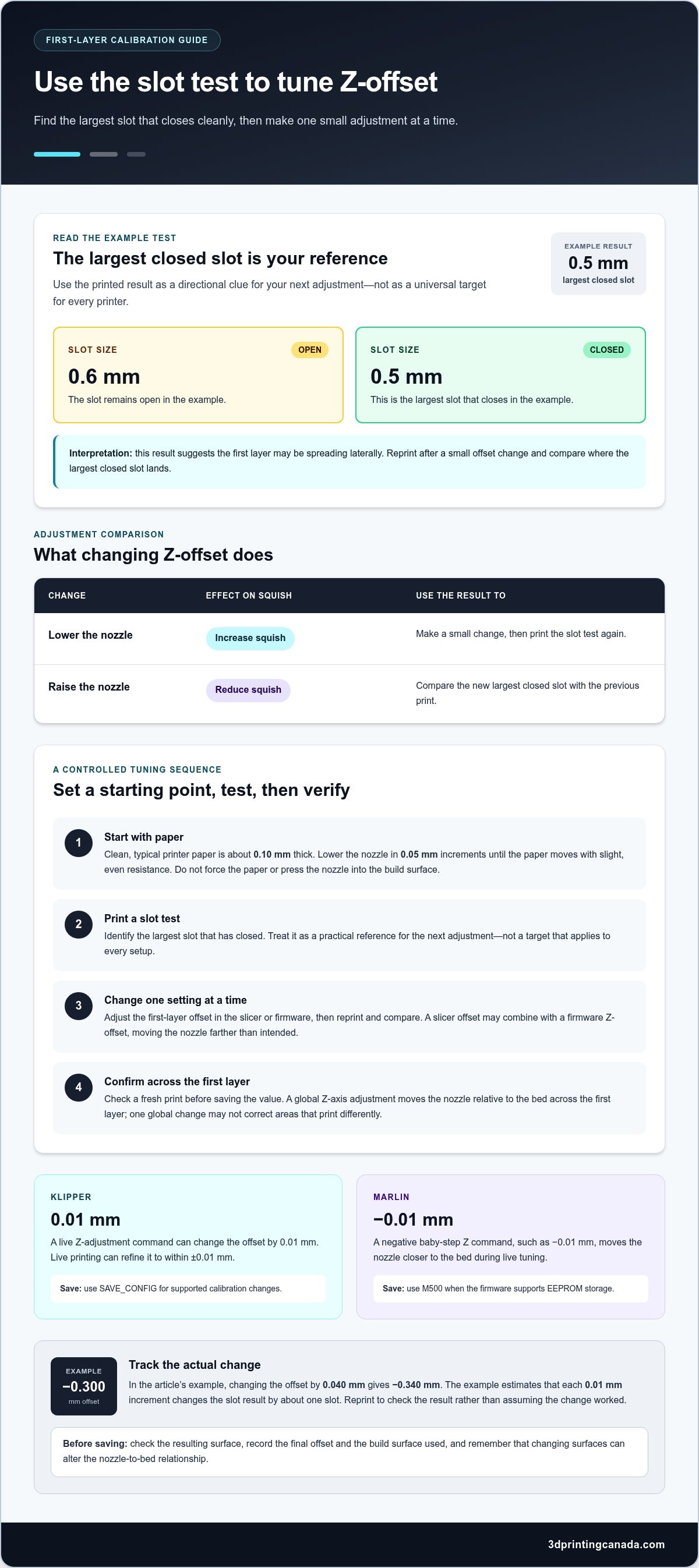
To improve first-layer squish, adjust Z-offset in small increments: lower the nozzle to increase squish, or raise it to reduce squish. Change the first-layer offset in your slicer or firmware, print a slot test, and use its largest closed slot to guide the next adjustment.
-
Adjust the Offset with Paper
Use clean, typical printer paper as a starting reference for the nozzle-to-surface gap. Paper is about 0.10 mm thick, so lower the nozzle in 0.05 mm increments until the sheet moves with slight, even resistance. Avoid forcing the paper or letting the nozzle press into the build surface.
Use this paper-based check as a starting point, then assess the first-layer squish with a test print. The offset is a global Z-axis adjustment: it moves the nozzle relative to the bed across the first layer. If one area prints differently from another, a single global change may not correct the whole surface.
-
Tune the Offset During the First Layer
Print a slot test and identify the largest slot that has closed. For the example setup, the 0.6 mm slot stays open while the 0.5 mm slot closes, so the largest closed slot is 0.5 mm. That result suggests the first layer may be spreading laterally in this example. Use it as a directional clue for your next adjustment, not as a universal target for every printer.
During live tuning, change the offset in small steps and compare the next result. For Klipper, a live Z-adjustment command can change the offset by 0.01 mm, and live printing can refine it to within ±0.01 mm. The example estimates that each 0.01 mm increment changes the slot result by about one slot. If the example offset starts at -0.300 mm, changing it by 0.040 mm gives -0.340 mm. Reprint the test to see whether the largest closed slot moves toward your target.
Avoid unintentionally stacking slicer and firmware adjustments. A first-layer offset set in the slicer may combine with a firmware-level Z-offset, moving the nozzle farther than intended. Make one change at a time, then compare the displayed offset with the printed slots.
-
Save the Adjusted Offset
Save the value after a test print confirms the adjustment works across the first layer. In Klipper, use
SAVE_CONFIGto save supported calibration changes to the printer configuration. In Marlin, save persistent settings withM500when the firmware supports EEPROM storage.For live Marlin tuning, a negative baby-step Z command such as -0.01 mm moves the nozzle closer to the bed. Check the resulting surface before saving, and avoid treating a temporary live adjustment as a permanent value. Record the final offset and the build surface used; changing surfaces can alter the nozzle-to-bed relationship.
Using thickness tabs with digital callipers
Use printed thickness tabs and digital callipers to compare the first layer’s measured thickness with its intended height. Recheck after changing the nozzle, build surface, or bed setup. Keep the surface clean and the nozzle clear so each test reflects the printer’s current condition.
-
Measure First-Layer Thickness
Print the thickness-tab test, then select a tab whose thickness matches the layer you want to assess. The tabs range from 0.1 mm to 1.0 mm in 0.1 mm increments, giving you a set of physical references. Use digital callipers to measure the printed sample on a flat section, away from a raised edge or first-layer flare.
Close the calliper jaws gently until they touch the plastic. Excessive pressure can compress the print and distort the reading. Compare the measurement with the tab’s marked value, then repeat at another point on the same piece. A noticeable difference across the sample may indicate uneven squish or inconsistent extrusion, not just a Z-offset problem. Record each test and setting to make the next comparison clear.
-
Assess First-Layer Height and Thickness
Compare the measured result with the slicer’s first-layer height, but don’t assume both values must match exactly. The slicer specifies the layer height; the printed thickness also reflects how filament spreads against the bed. A typical single printed layer is about 0.2 mm thick, and the tabs can be used with 0.1 mm, 0.2 mm, or 0.4 mm layer heights.
For a 0.2 mm first layer, start with a tab that provides a useful nearby reference, then inspect the print’s shape and consistency alongside the calliper reading. A measurement alone doesn’t show whether lines are bonding well or spreading too far. Keep the slicer height unchanged while checking Z-offset; changing both at once makes it harder to identify what improved or worsened the result.
-
Check the Nozzle-to-Bed Gap
Use the test’s thickness and surface contact to judge whether the nozzle gap needs adjustment. The intended first-layer height is a starting point, while the gap determines how firmly filament is pressed onto the bed. The guide’s preferred smallest printable gap is 0.2 mm to 0.3 mm; use the printed result to assess your setup rather than forcing every material into one reading.
Account for the build surface. Build-surface differences can affect the nozzle-to-bed gap, so check the printed first layer and adjust as needed. With a 0.2 mm layer height, a -0.05 mm offset gives about 25% first-layer squish. Recalibrate when a nozzle or surface change alters the gap, or when repeat prints show inconsistent thickness. If bed contact or measurements remain uneven, 3D printer repair services can help address printer hardware issues.
Visual signs of correct first-layer squish
Read the first layer from both sides before changing the nozzle offset. A 50 mm by 50 mm square printed at a 0.2 mm layer height gives you a consistent reference for spotting gaps, excessive flattening, and uneven contact.
-
Inspect the First-Layer Surface
Print a single-layer square and inspect both its top and bottom. Correct squish joins adjacent extrusion lines without gaps, while keeping each line visible instead of blending into a smooth, featureless patch.
On a textured build surface, inspect the top as well as the bottom. Texture can make the underside harder to assess, so check the top for consistent joins between lines across the square. Compare the centre with the edges. If the centre looks different, uneven bed contact may be the issue, rather than an offset that needs changing everywhere.
Keep the print and lighting consistent between tests. A clear reference helps you tell whether a small offset adjustment improved the line pattern or merely changed how it looks.
-
Identify Too Much or Too Little Squish
Open channels between extrusion lines can mean the nozzle is too high. The strands may look rounded and separate rather than forming a connected surface, and adhesion may be uneven. If gaps continue across the square, lower the nozzle slightly and print another test.
Excessive squish creates the opposite pattern: lines spread until their boundaries fade, especially near the centre of the bottom surface. The top may show ridges where neighbouring lines push material together. Raise the nozzle slightly, then compare the new square with your reference.
Change only the offset between tests. Adjusting flow or layer height at the same time makes it hard to tell what changed the line pattern. A consistent square lets you compare adhesion and line definition without altering the test itself.
-
Recognise a Nozzle That Is Too Low
Check whether the nozzle has flattened the filament so much that the lines are barely visible from below. A very smooth patch at the centre, raised ridges between lines, or material dragged across the surface can all indicate that the nozzle is too close.
Raise the nozzle in a small increment and inspect a fresh square before making another change. Keep the first-layer height at 0.2 mm for a like-for-like comparison, and look for distinct, joined lines without deep grooves. If the nozzle contacts the bed, stop the print and correct the gap before testing again.
Use the visible line pattern as your reference, not a single shiny or matte patch. Surface texture, lighting, and filament affect appearance. Consistent line spacing and definition across the test provide a more useful comparison.
First-layer settings by filament material
Nozzle diameter and layer height shape the extruded bead, while filament affects how it flows and bonds. Calibrate squish for each material, then adjust line width, flow, and bed temperature one setting at a time.
- Start with PLA settings and a consistent first-layer test. A practical starting range is 0.20-0.28 mm layer height, 15-20 mm/s first-layer speed, a 55-65°C bed, and a 200-215°C nozzle. Keep these values steady while you tune Z-offset, then change one temperature or speed setting only if the printed lines show inconsistent contact.
Set first-layer line width to at least 120% during squish testing. The wider bead can help adjacent lines meet, but it doesn’t replace correct nozzle height. For example, use a 0.4 mm nozzle as your reference, then judge the line shape on the test print before adjusting flow.
- For PETG, begin with a 70-85°C bed and a 230-245°C nozzle. PETG can be more sensitive to excessive squish, so raise Z-offset by +0.02 mm to reduce pressure against the bed. The author’s example uses the 0.1 mm slot as a PETG target; treat it as a test reference and evaluate the resulting line pattern.
Keep extruder temperature and first-layer speed consistent when comparing PETG tests. If you change temperature, flow, and offset together, you won’t know which adjustment affected adhesion or line spread. Make one change, print again, and compare like with like.
- For ABS or ASA, use a 100-110°C bed temperature as the starting range. Keep the first-layer setup stable while adjusting Z-offset, because changing the bed setting can also change how the filament contacts the surface. Check that the extruded lines join cleanly before changing flow or layer height.
Material-specific settings matter: an offset that gives PLA a clean first layer may press PETG too firmly. Recalibrate when switching filament, and record the material alongside its slicer settings so you can return to a working setup.
- Match the layer height to the nozzle and the test you’re running. With a 0.1 mm layer height, setting first-layer height to 200% produces a 0.2 mm first layer. Nozzle construction can matter too: installed height may differ by 0.1 mm between a 0.4 mm brass nozzle and a 0.4 mm hardened steel nozzle from the same manufacturer.
Keep flow unchanged while setting line width to at least 120%, then inspect whether lines connect without excess material. If extrusion looks uneven, review flow after checking the nozzle and filament path. Tune bed temperature within the chosen material’s range, then use a fresh first-layer print to assess the combined settings.
What is the ideal first-layer nozzle-to-bed gap?
There is no single offset for every printer and build surface. Set the gap so the first layer bonds without flattening until its lines disappear, then assess the result in relation to your layer height and surface.
- Start with the first-layer height in your slicer. The guide recommends at least 0.25 mm when fine-tuning squish, because an extremely thin first layer leaves little room to judge the nozzle gap. A 0.2 mm layer height provides a useful example: a -0.05 mm offset gives about 25% first-layer squish.
That percentage describes the example’s squish, not a universal offset. Use it to understand how changing the gap affects the extruded line, then verify the result on your own printer.
- Identify your build surface before calibrating. Textured sheets are thinner than smooth PEI sheets, so the nozzle needs to move closer to the bed during calibration. A setting that works on a smooth sheet may leave the nozzle too high over a thinner textured sheet.
Install the surface you plan to print on, then calibrate with it in place. Recalibrate after switching surfaces because the change affects the nozzle-to-bed relationship.
- Use offset values as printer-specific references, not ready-made targets. A common first-layer calibration value range for the smooth sheet is -0.400 to -1.500. The correct point within that range depends on the printer’s probe, nozzle installation, and surface.
Even nozzles with the same diameter can differ in installed height. A 0.4 mm brass nozzle and a 0.4 mm hardened steel nozzle from the same manufacturer can vary by 0.1 mm. Recheck the gap after a nozzle change rather than carrying over the old offset blindly.
- Find the smallest gap that still produces a complete, printable first layer. The author’s preferred target is a smallest printable gap of 0.2 mm to 0.3 mm. Use a test print to assess whether lines connect and remain visible; an offset number alone cannot show how your surface and filament interact.
If the line pattern changes across the bed, check bed levelling and mesh before adjusting the global offset. A single offset changes nozzle height everywhere, so it cannot correct an uneven surface on its own.
- Record the surface, nozzle type, first-layer height, and working offset together. This gives you a useful calibration reference when you change one component later. If the nozzle contacts the bed or the gap remains inconsistent after calibration, get help with 3D printer repair.
3D Printing Canada: 3D Printer Repair Services
3D Printing Canada offers 3D Printer Repair Services for printer hardware issues that keep a reliable first layer out of reach. If repeated Z-offset adjustments and surface checks don’t resolve persistent nozzle contact or uneven printing, the cause may extend beyond calibration. A repair can help address equipment problems affecting consistent printer operation.
Keep a record of your test prints, filament, build surface, and current settings. Those details help explain what you’ve already tried and where the first-layer problem appears. For issues that persist after careful adjustment, contact 3D Printing Canada to discuss 3D Printer Repair Services.
Make your next print a useful test
Make calibration a repeatable part of your workflow. Record the filament, build surface, nozzle, and slicer profile used for each successful setup. If a later print changes, these notes give you a starting point for isolating the cause instead of adjusting several settings at once. Treat the first layer as a practical diagnostic, not just the opening of a print.
Use this first-layer squish height adjustment guide as a reference when you revisit your settings, then adapt your approach to the material and printer in front of you. If you’re preparing a new setup, 3D Printing Canada offers Bambu Lab Accessories and 3D Printing Canada hardware. For hardware issues that interfere with reliable printing, its 3D Printer Repair Services may be a useful next step.
Contact 3D Printing Canada to explore the support and equipment options available for your printing work. Keep experimenting thoughtfully, and let each test bring you closer to prints you’re proud to make.
Frequently Asked Questions
What is first-layer squish in 3D printing?
First-layer squish is the controlled flattening of extruded filament as it meets the build surface. The nozzle presses the bead enough to help it bond and form the print’s base. Too little pressure can leave a weak foundation; too much can push plastic beyond the intended edges. Squish depends on the nozzle gap, layer height, filament flow, and surface working together.
How do I recognize a first layer that is too high or too low?
A nozzle set too high may leave separated strands or a print that releases easily. A nozzle set too low can flatten material excessively, create raised ridges, or scrape the surface. To distinguish a global offset issue from uneven bed contact, compare the same test at the centre and edges. If the pattern varies by location, investigate bed levelling or mesh before applying one offset correction everywhere.
How should I calibrate first-layer height with a test print?
Print a simple first-layer pattern using the same surface and filament planned for the job. Keep slicer settings steady and adjust only the Z-offset between tests so you can see the effect of that change. If the centre and edges behave differently, inspect bed levelling or mesh instead of compensating with one global value. Save a separate profile for each material and surface combination.
What causes first-layer elephant foot, nozzle scraping, or poor adhesion?
Elephant foot often appears when the first layer is pressed or spread beyond the part’s intended outline. Scraping can result from a nozzle gap that is too small or uneven bed contact. Poor adhesion may stem from a gap that is too large, unsuitable material settings, or a dirty build surface. Check the defect’s location and shape before changing offset, temperature, or flow.