
The quickest route from STL to STEP isn’t always an online converter: a flawed mesh can carry its defects into the conversion. A reliable mesh cleanup and STL-to-STEP conversion software workflow first fixes holes, gaps, flipped normals and other surface issues, then converts the repaired model. This matters because an STL describes a surface with triangles, while STEP represents geometry as defined surfaces and solids.
If you’ve opened an STL and found broken edges, overlapping triangles or a file that’s difficult to edit, you’re not alone. Repairing the mesh gives the conversion a cleaner starting point, but the right approach depends on the model and what you need to do next. This guide covers stitching edges, editing triangles, simplifying the mesh and choosing between CAD software and an online converter, so you can select a workflow suited to your file.
Key Takeaways
- Find holes, gaps, overlapping faces and floating triangles before converting; a watertight mesh gives the next step a cleaner starting point.
- Stitch compatible open edges and edit problem triangles carefully to restore a continuous surface without changing the intended shape.
- Simplify dense meshes to make them easier to handle, while keeping enough detail for the model’s intended use.
- Choose CAD software when you need more control over mesh repair, and an online converter for a simpler conversion task.
- Inspect the converted STEP model before using it: converting triangles does not automatically restore the original design’s editable features.
Why Repair an STL File?
Convert an STL mesh to a STEP solid when you need a neutral solid representation. Reverse engineering goes further by rebuilding design intent, such as editable features and dimensions. A mesh cleanup and STL-to-STEP conversion software workflow begins by identifying defects, then repairing and validating the surface before conversion.
Identify Mesh Errors
Open the STL in mesh software and inspect it from several angles. Its triangles describe the outer surface, so missing facets can leave holes, while floating triangles sit apart from the main shell. Look for cracks, flipped triangles, overlapping faces and improper intersections. These defects can disrupt printing or create confusing geometry during manufacturing and prototyping.
- Separate shells to identify loose components and determine which belong to the intended object.
- Use visual inspection or mesh analysis to locate open boundaries, intersecting triangles, and disconnected fragments.
Mark defects before editing. A crack beside a curved feature may need a different fix from an isolated triangle on a flat face.
Repair Holes and Non-Manifold Edges
Fill each opening with triangles that follow the surrounding surface. A flat patch may suit a simple opening, while curved geometry needs a fill that continues its contour. Stitch matching boundaries, then inspect the joins for gaps and overlaps. Resolve non-manifold edges, which prevent the mesh from defining a clean, continuous surface.
- Remove duplicate faces and resolve intersections that leave conflicting surfaces.
- Check triangle normals after repair so inside and outside directions remain consistent.
A closed patch restores the surface, but it cannot recover design features missing from the STL. Review repaired areas from multiple views before continuing.
Prepare the Repaired Mesh for Printing
Validate the complete model after local edits. Confirm its shells are intentional and the surface is closed. For a general 3D-printing starting point, 0.8 mm wall thickness equals two perimeters with a standard 0.4 mm nozzle. For greater stability and durability, use 1.2 mm to 2.0 mm where the design allows.
- Inspect thin walls and unsupported overhangs in relation to the part’s function.
- Save a clean copy and export the repaired STL in Binary format to reduce file size.
Keep the original unchanged for comparison. A mesh cleanup and STL-to-STEP conversion software workflow prepares surface geometry for conversion, but does not restore parametric features or material properties. Inspect the STEP model separately because it represents defined surfaces, edges and volumes.
A typical STL repair workflow can include separating shells, filling holes, resolving overlaps, removing duplicate faces, stitching edges, editing triangles, remeshing and re-exporting the file. The sequence depends on the defects: local edits address damaged areas, while a final review checks the repaired mesh as a whole from several views.
A mesh intended for 3D printing should be manifold and free of holes. Repairing an STL mesh includes fixing gaps and normals and ensuring the surface is watertight before conversion. These checks help establish a continuous surface for the next step; re-export only after reviewing the repaired geometry.
Edge stitching and triangle editing
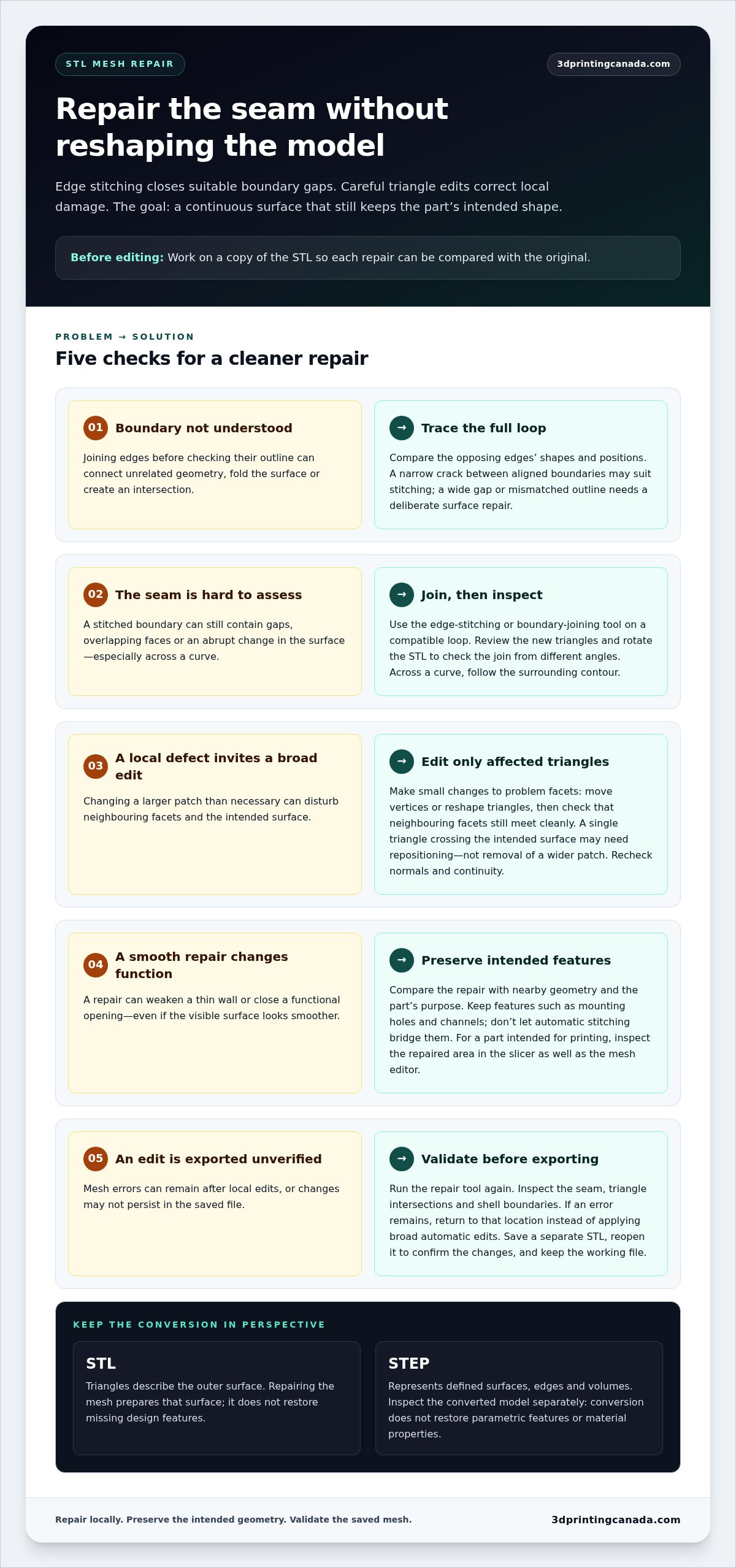
Work on a copy of the STL so you can compare each edit with the original. Stitching closes suitable boundary gaps, while triangle editing corrects local geometry without reshaping the entire mesh.
- Inspect the boundary loop. Select the open edge and follow its full outline before stitching. Check whether the opposing edges have matching shapes and positions. A narrow crack between two aligned boundaries may suit stitching, while a wide opening or mismatched outline needs a deliberate surface repair. Don’t join unrelated edges simply because they’re close; that can fold the surface or create a new intersection.
- Stitch compatible edges. Use the software’s edge-stitching or boundary-joining tool on the selected loop. Review the generated triangles along the seam, then rotate the STL to inspect the join from different angles. Look for gaps, overlapping faces, and abrupt changes in the surface. If the seam crosses a curved area, adjust the connection so the new facets follow the surrounding contour.
- Edit only the triangles that need attention. Select problem facets around a crack, protrusion, or uneven transition. Move vertices or reshape the affected triangles in small edits, checking that neighbouring facets still meet cleanly. For example, a single triangle crossing the intended surface may need repositioning rather than deleting a wider patch. Recheck the local normals and surface continuity after each change.
- Keep the intended shape and thickness. Compare the edited region with nearby geometry and the model’s design purpose. A repair that smooths a visible surface can still weaken a thin wall or close a functional opening. Preserve features such as mounting holes and channels; don’t let automatic stitching bridge them. For a part intended for printing, inspect the repaired area in the slicer as well as the mesh editor.
- Validate the edited mesh before exporting. Run the repair tool again and inspect the seam, triangle intersections, and shell boundaries. If the software reports a remaining mesh error, return to that location rather than applying broad automatic edits. Save the result in a separate STL file, then reopen it to confirm the changes persisted. Keep the working file if further editing or conversion becomes necessary.
Different formats preserve different model information, so treat a repaired STL as surface geometry, not as a fully editable CAD design. If print defects remain after the mesh checks, printer-side troubleshooting can help isolate equipment issues from file problems.
Mesh simplification and decimation
If an STL is too complex to convert directly to STEP, simplify or decimate the mesh first. You can also divide the model into regions or rebuild clean CAD surfaces when editable design geometry matters more than preserving every triangle.
- Assess the mesh before reducing it. Run an analysis and identify dense areas, thin features, and visible errors. A high-resolution scan can contain millions of triangles, but detail is rarely distributed evenly. For example, a broad, flat panel may tolerate more reduction than a small engraved edge. Keep an untouched version so you can compare the original and simplified surfaces.
- Choose what detail to preserve. Match simplification to the model’s purpose. A visual prototype may need its silhouette and prominent surface details, while a manufacturing part may depend on precise edges, holes, and mating faces. Mark those features before decimation. If the mesh contains important texture or colour, check how the selected process handles them before editing.
- Reduce triangles in controlled passes. Apply decimation gradually instead of making one aggressive reduction. After each pass, compare the outline, curves, and small features against the saved version. Watch for flattened corners, softened ridges, or holes that change shape. If the software reports mesh errors, repair them before continuing; decimation can make defects harder to locate.
- Review texture and topology consequences. Texture handling can vary by process, so check whether the selected decimation workflow preserves it. Preserve a textured source separately if appearance matters, and inspect the simplified output for visible changes. Some formats carry appearance data differently, so don’t assume an STL retains colour or texture. For a plain geometry conversion, focus on connected surfaces and the shape needed downstream.
- Select an alternative when simplification isn’t enough. Split a large model into manageable regions, then process and inspect each region before reassembly. For a STEP model that needs editable surfaces, rebuild the important geometry as CAD features rather than converting every triangle. That custom reconstruction takes more design work, but it can produce cleaner surfaces. If the model is only for printing, keep the repaired STL instead of converting it.
Save the simplified mesh as a separate file and record the software version. Compare it with the original at the same view and scale, then check the features you need before conversion. A mesh converter doesn’t inherently improve triangle quality, so simplify the model without hiding errors or removing necessary details.
Comparing CAD software with online converters
Choose the conversion route based on the work your STL needs, not just convenience. CAD software gives you more control over inspection and repair, while an online converter can produce a STEP file with fewer setup steps.
- Define what the STEP file must do. If you only need a neutral solid for viewing or a basic downstream task, a direct converter may suit the job. If the object needs edits to faces, edges, or dimensions, use CAD software that supports mesh inspection and geometry tools. Neither route turns an STL’s triangles into the original parametric design history.
- Assess the input mesh first. Open the STL and check whether it is closed, connected, and free of obvious intersections. Conversion time can range from 10 seconds to more than an hour, depending on mesh complexity, software performance, and computer hardware. A dense scan or damaged surface can take longer to process, so simplify or repair it before conversion.
- Use CAD when control matters. A CAD workflow lets you inspect the mesh, adjust problem areas, and review the resulting solid in the same environment. That matters when a part needs specific surfaces or edges preserved. Confirm the STEP result represents a watertight object and compare critical geometry with the original STL. Conversion software doesn’t inherently improve triangle quality.
- Use an online converter for a straightforward transfer. Upload the repaired STL, choose STEP as the output format, and review the generated file. Before uploading, consider whether the model contains sensitive design information and review how the service handles submitted files. Then open the STEP in compatible software and inspect its surfaces, edges, and overall shape. A successful download alone doesn’t prove the model converted cleanly.
- Test the result in its next application. Import the STEP into the CAD or manufacturing software that will use it. Check whether the object opens as a solid, whether important faces remain intact, and whether the intended edits are possible. If the file fails those checks, return to the mesh or try a controlled CAD conversion rather than repeatedly submitting the same STL.
For a repaired, simple mesh and a basic transfer, an online converter can be efficient. For complex geometry, repeated edits or manufacturing decisions, CAD software offers a more robust inspection and correction workflow. Validate the STEP file in its destination application either way.
A repair pass may help before either conversion route if the STL has visible mesh defects. STL repair can address holes from missing triangles, flipped triangles, cracks, non-manifold arrangements, overlapping triangles and improper intersections. After repair, inspect the mesh again before creating the STEP file, then check the converted result in its destination application. Treat repair and conversion as separate checks: a successful export does not prove the geometry is sound.
For resin-print models, keep slicing settings in view as a separate part of the workflow. The page recommends slicing resin-print models at 50µm or 25µm, with anti-aliasing enabled. Those settings concern preparation for resin printing, while the STEP conversion choice concerns how the geometry is transferred and inspected. Confirm the converted model suits its intended use before moving on to print preparation or other downstream work.
What software can clean up STL meshes and convert STL to STEP?
Use a mesh editor for surface cleanup, then CAD software for STEP conversion. FreeCAD can handle both stages, while MeshLab and Blender are options for mesh-focused editing before CAD import.
- Match the software to the job. FreeCAD provides a route from mesh inspection to solid conversion and STEP export. MeshLab focuses on mesh processing, including cleaning and reducing dense geometry. Blender offers mesh-editing tools for adjusting vertices and faces. Don’t assume every editor can export STEP; choose a toolchain that covers both repair and the required output format.
- Use FreeCAD for a combined workflow. Import the STL and inspect its mesh before converting it into a shape. Then create a solid from the shape and export it as STEP. Each operation changes the model’s representation, so inspect the result after conversion. A mesh with many small facets can produce a STEP model that remains complex, rather than becoming smooth, editable CAD geometry.
- Pair MeshLab or Blender with CAD software. In MeshLab, clean or simplify the mesh before saving an STL for CAD import. In Blender, edit vertices and faces, then export the mesh for the next stage. Neither should be treated as a direct STEP solution in this workflow. Open the exported STL in CAD software that can convert and export STEP.
- Choose online conversion for simple transfers. A browser-based converter can be a practical option when the mesh is already clean and you need a straightforward format change. Upload the STL, select STEP, and open the output in CAD software to inspect it. Avoid using conversion as a substitute for repair: the input mesh quality limits the result, and conversion software doesn’t inherently improve triangle quality.
- Validate the final file in its intended application. Check that the STEP opens as the expected solid and that important edges, openings, and surfaces remain intact. Test whether the geometry supports the edits or manufacturing task you need. Keep the original STL and the repaired copy, so you can compare surfaces if conversion introduces unexpected geometry or fails.
For a one-off, uncomplicated conversion, try a direct converter after checking the mesh. For damaged or dense geometry, use a repair-focused editor followed by CAD conversion, then inspect the STEP file. If a test print points to a printer hardware problem rather than a file issue, explore 3D printer repair support.
3D Printing Canada: Bambu Lab Accessories
3D Printing Canada offers Bambu Lab Accessories, 3D Printer Repair Services, 3D Printers, and 3D Scanners. If your repaired model is ready for printing but your printer has a hardware issue, its repair services are a relevant next step. If you’re building a scanning-to-print workflow, explore its 3D Scanners alongside your mesh editing and conversion process. Bambu Lab Accessories may also suit a workflow using Bambu Lab equipment.
Keep the jobs distinct: mesh cleanup and STL-to-STEP conversion happen in software, while printer repair addresses equipment problems. Choose the support that matches the obstacle you’re facing. Visit 3D Printing Canada online to explore its offerings or get in touch.
Put your repaired model to work
Choose the next step based on what you want the model to do, not simply the file format you have. A mesh cleanup and STL-to-STEP conversion software workflow is one part of a larger project, from preparing a design to printing a finished piece. Keep the original files organized and label each revision clearly. That gives you a useful reference as the model moves through editing, conversion and production.
For support connected to your broader 3D printing setup, 3D Printing Canada offers Bambu Lab Accessories, 3D Printer Repair Services, and 3D Printeda. If a hardware issue is holding up a print, its repair services may be a relevant next step. Explore the offerings that fit your project, then decide where you’d like to take your model.
Ready to discuss your next step? Contact 3D Printing Canada and keep your project moving forward.
Frequently Asked Questions
How to Convert STL File to STEP File?
Import the STL into CAD software, convert the mesh into a shape, create a solid, then export that solid as STEP. In FreeCAD, inspect the converted object before export and confirm its scale and orientation match the source. After saving, reopen the STEP file in the software that will use it. This can catch issues such as an empty export or a model placed unexpectedly in the workspace.
How can you reduce STL triangle count while preserving accuracy before conversion?
Reduce triangles in flatter regions first, while preserving sharp edges, holes and other functional details. Use a deviation or surface-comparison tool to compare the simplified mesh with the original, then inspect cross-sections through critical areas. For example, check the shape of a mounting hole and the profile of a curved exterior. If important geometry shifts, undo the reduction and use a gentler setting or preserve that region.