
Tree supports often leave fewer removal marks, but they’re not automatically the cleanest choice for every print. The answer to “tree supports vs normal supports removal marks” depends on where supports touch the model, how firmly they hold an overhang, and how easily they separate. A support that peels away cleanly from a miniature might struggle beneath a broad, flat surface.
If visible scars have spoiled a finished part, or you’re worried that removing supports will snap a thin feature, you’re not alone. Slicer settings matter, too. A value that works on one model may not suit the next.
This guide compares tree and conventional supports, explains what causes marks, and shows how model geometry should shape your choice. You’ll also learn which settings to test first, including the gap between support and model, so you can reduce scarring without sacrificing a reliable print. Start with a small test, then adjust for the surfaces that matter most.
Key Takeaways
- Tree supports branch around complex shapes, while conventional supports use columns or grids. Their contact patterns affect how they separate.
- For tree supports vs normal supports removal marks, compare the model’s geometry and visible surfaces rather than assuming one style always leaves a cleaner finish.
- Match support style to overhang shape, removal access, and the part’s fragility.
- Test support style, interface settings, separation distance, orientation, and contact placement one at a time on a small print.
- Save successful slicer settings with your test results so you can repeat the setup and refine it for future models.
Tree Supports vs. Normal Supports: What Causes Removal Marks?
Support removal marks are traces left where temporary print material separates from a model. They can appear as small contact scars, rough patches, pulled strands, or gouges caused by prying supports away. Support style is only one factor. Contact placement, interface design, separation distance, print orientation, and model geometry all affect the finish.
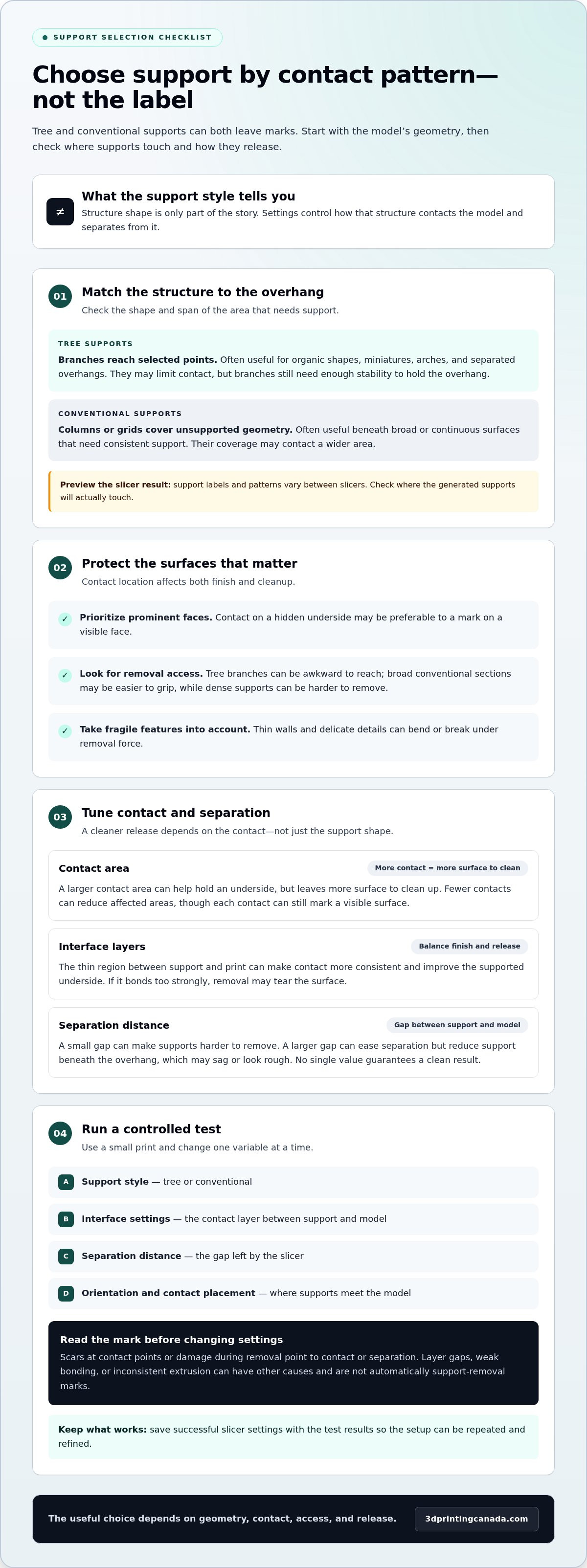
Quotable definition: Tree and normal supports describe the shape of the support structure; slicer settings control how that structure contacts the model and how readily it separates.
How tree supports differ from normal supports
Tree supports grow from a base into branching paths that reach selected overhangs. Instead of filling every open area beneath a feature, the slicer can route branches towards specific points that need support. This can limit contact on a complex surface, but the branches still need enough stability to hold the overhang as it prints.
Normal supports, also called conventional or linear supports, typically use columns or grid-like structures beneath unsupported geometry. They can support broader regions, but may create more contact across an underside. Labels and patterns vary between slicers, so check the preview to see how your software generates supports rather than relying on the name alone.
Why support removal can leave marks
Every contact point is a place where support material meets the model. A larger contact area can help hold an underside, but it also leaves more surface to clean up. Interface layers, the thin region between the support body and the print, can make contact more consistent. If the interface bonds too strongly, removal may tear the surface. If it’s too far away, the supported area may sag or look rough.
Separation distance matters, too. It’s the gap the slicer leaves between the support and the model. A small gap can make supports harder to remove, while a larger gap can ease separation but reduce support beneath the overhang. The useful setting depends on the geometry and print conditions, so no single value guarantees a clean result.
Look closely at the defect before changing settings. A scar that follows a support contact point, or damage that appears as you remove a support, points to contact or separation. Gaps between layers, weak bonding, or inconsistent extrusion can create defects elsewhere on the print. Those aren’t automatically support-removal marks. If similar surface problems persist across prints, a printer issue may be contributing.
Thin walls and delicate features need extra care because even a small amount of removal force can bend or break them. Consider visible surfaces as well: contact on a hidden underside may be preferable to a mark on a prominent face. For tree supports vs normal supports removal marks, start by identifying where contact occurs and how the support releases. That gives you a clearer basis for choosing a structure and tuning its settings.
How Tree and Normal Supports Affect Surface Finish and Removal
Neither support style automatically produces a flawless surface. Tree supports often limit contact on complex shapes, while conventional supports can provide steadier coverage beneath broad overhangs. The best result depends on whether the support reaches the right places without bonding too firmly or getting in the way of removal.
Removal marks depend on where supports contact the model and how that contact interacts with its geometry. Use this comparison as a starting point, then check the slicer preview to see where supports will actually touch.
| Factor | Tree supports | Normal supports |
|---|---|---|
| Contact pattern | Branches can reach selected points, sometimes limiting contact area. | Columns or grids may contact a broader region beneath the feature. |
| Removal effort | Can separate readily, but individual branches may be awkward to reach. | Broad sections may be easy to grip, though dense support can be harder to remove. |
| Geometry fit | Often useful for organic shapes and separated overhangs. | Often useful beneath broad or continuous surfaces that need consistent support. |
| Surface risk | Fewer contacts may reduce affected areas, but visible branch contacts can still mark a surface. | More contact may help support an underside, but can leave a larger area to clean. |
When tree supports may leave a cleaner result
For a miniature with limbs, arches, or isolated overhangs, branching supports can reach specific areas without filling the space beneath the whole model. That may keep more of the surface untouched. But branches can still land on a visible face, and a long or thin branch may provide less stable support. Review the slicer preview and adjust contact points where possible.
When normal supports may be easier to control
A wide, continuous overhang may benefit from support distributed beneath it, making conventional columns or grids a practical option. This coverage can help the underside print more consistently, especially when appearance there matters less than a stable result. The trade-off is that support may touch more of the surface. Dense structures or settings that make separation difficult can increase scarring.
Support interface settings involve a similar trade-off. An interface creates a more controlled layer between the support body and the model, which can improve the underside finish. If it grips too tightly, though, supports may take more effort to remove and leave marks. Balance underside quality against ease of release, and inspect both the supported face and contact spots.
For tree supports vs normal supports removal marks, judge the printed result, not just the support preview. Consider whether marks land on a display surface, whether you can reach the support with a removal tool, and whether the feature can withstand cleanup. A small test of the most important overhang can reveal more than changing support style across a complex, full-size print.
Material behaviour can also influence how cleanly a test support separates. If you’re comparing settings, keep the filament consistent between trials. 3D printing filaments are part of the practical setup to consider alongside support style and slicer controls.
Which Support Type Should You Choose for Your Model?
Choose supports by examining the feature that needs help, not just the overall shape of the model. Consider four things: the overhang’s footprint, which faces will be visible, whether you can reach the supports after printing, and how much force the part can tolerate during removal. These checks help narrow your options before you commit to a full print.
- Overhang shape: Does the feature need support beneath a small, continuous patch, or at separated points along a branching feature?
- Surface visibility: Which faces need the cleanest finish, and can you orient the model to keep contact away from them?
- Removal access: Can you reach each support with a suitable tool, or could it become trapped in a narrow opening?
- Part fragility: Could a thin wall, narrow connector, or small detail bend or break if removal takes extra force?
Then inspect the slicer preview. Rotate the model and look at the support paths, contact points, and areas where material could be difficult to remove. A support style can sound suitable in theory but place contact in an awkward spot on your particular model.
Match support style to overhang shape and access
For a small, flat underside patch, conventional support may offer predictable coverage directly below the area. If the patch is tucked into a narrow recess, though, removing that support could be awkward. A branching overhang, such as several separated arms extending from a central body, may be easier to reach with tree supports that follow selected paths. Check that branches don’t cross visible faces or end in inaccessible gaps.
Look beyond the preview’s top view. A support that looks clear from one angle may run behind a feature or sit inside a slot from another. If removal access is poor, try changing the model orientation or adjusting support placement before printing.
Prioritize visible surfaces and fragile details
Decide which face matters most before choosing a support pattern. When practical, orient a display surface away from likely contact, even if that means supporting a less visible underside. For thin walls or delicate details, favour an arrangement you can remove gradually without levering against the part. Supports trapped between close features can be risky, regardless of their style.
There’s no universal slicer default. Support placement and separation settings can behave differently with different printers, materials, and model shapes. Treat the preview as a plan, not a guarantee, and test a small section containing the critical overhang or fragile detail. A short test print lets you compare actual removal effort and surface quality before scaling up.
The question of tree supports vs normal supports removal marks is best answered one model at a time. Choose the setup that protects the important face, supports the overhang adequately, and remains reachable for careful cleanup. If the first test reveals a snag, change one factor, such as orientation or support placement, and compare again.
Reduce Support Removal Marks with a Controlled Slicer Test
A clean support setup comes from testing, not changing several slicer values at once and hoping for the best. Use a small feature that represents the difficult overhang on your model, or print a cut-down section that includes its critical surface. Keep the printer, filament, and other settings consistent between trials so you can identify what caused a change.
- Set a baseline. Save the current profile and note the material, model orientation, support style, interface settings, and separation distance. Preview the toolpath and record where supports touch the model.
- Compare support styles. Print the test feature with tree supports, then with normal supports. Keep the other settings fixed and compare underside quality, support stability, and removal effort.
- Adjust the interface. Change interface layers or density in a small increment, then print again. Note whether the underside improves and whether the interface releases cleanly.
- Test separation distance. Adjust the support-to-model gap slightly in one direction. A tighter gap can hold the overhang more closely but may be harder to separate. A wider gap may release more easily but leave the underside less supported.
- Try orientation and contact placement. Rotate the feature to move contact away from a prominent face, or adjust contact points if your slicer allows it. Check the preview for unsupported areas and supports that may be difficult to reach.
Tune support contact and interface settings
Interface layers provide a transition between the support and the model. Their number and density can affect how evenly the underside is supported, as well as how firmly the interface separates. Make small, documented changes and compare each test with your baseline. Avoid changing interface density and separation distance together, or you won’t know which adjustment improved the result.
Use orientation, material, and careful removal
Orientation can protect a display face by shifting support contact to a less visible area, if the model’s geometry permits. Material matters, too: PLA and PETG may behave differently at support interfaces, so don’t assume one profile will work equally well for both. Follow the slicer’s material profile as a starting point, then test. Remove supports gradually with suitable hand tools, keeping force away from thin walls and small details.
Print speed can affect the trade-off between productivity and surface quality. For more context on how speed influences print decisions, explore these high-speed 3D printing trends. Keep a simple test log with the profile name, material, changed setting, and result. Once a repeatable setup works, explore 3D printing filaments suited to your next project.
Choose a Repeatable Support Setup for Cleaner Prints
Once a test gives you a cleaner result, turn it into a process you can repeat. A reliable support setup starts with the model’s geometry, then carries through slicer settings, careful removal, and a consistent surface check. That makes the next decision about tree supports vs normal supports removal marks easier to base on evidence rather than guesswork.
- Review the geometry. Identify the overhangs that need support, the faces you want to protect, and any narrow spaces that could trap support material.
- Choose a support style and orientation. Check the slicer preview to confirm that supports reach the required areas without touching important surfaces unnecessarily.
- Record the setup. Save the support style, interface settings, separation distance, material, and model orientation with the slicer profile.
- Remove supports carefully. Work gradually with suitable hand tools, taking care not to lever against thin walls or small details.
- Inspect the result. Look at both the supported underside and the contact areas. Compare them under consistent lighting so rough patches and scars are easier to spot.
Build a support profile you can reuse
Keep test results with the profile they came from. Note what worked, where marks appeared, how easily supports separated, and whether the underside quality met your needs. Organize profiles by model type or material when their requirements differ. A setup that suits a broad, flat overhang may not suit a delicate, branching shape. Consistent lighting makes comparisons more useful from print to print.
Know when the issue may be beyond support settings
A mark that appears exactly where a support touched the model may point to contact or removal settings. A similar defect across unrelated prints, including areas without supports, suggests the cause may lie elsewhere. Review basic printer condition and repeat a controlled test before continuing to change support values. If print-quality problems persist and point to hardware, 3D Printing Canada provides professional 3D printer repair services.
Keep the successful profile and your inspection notes together, then use them as a starting point for similar models, not as a universal preset. Small differences in geometry or material may still call for a fresh test. For your next project, explore 3D printing supplies and build a setup around the model you want to make.
Make Your Next Support Test Count
Use your next print as a chance to build a setup you can trust. Choose a model feature that challenges your usual support approach, save your current slicer profile, and make one measured adjustment. The result doesn’t need to be perfect on the first try. A useful comparison shows what worked, where the surface needs attention, and what to test next.
That practical mindset is the key to tree supports vs normal supports removal marks: let the model guide the choice, then let a repeatable test guide the settings. If surface defects continue across unrelated prints, even after controlled adjustments, professional repair support can help address a possible hardware cause.
When you’re ready to prepare for your next project, explore 3D printing supplies and find what fits your next project. 3D Printing Canada sells 3D printers, scanners, filaments, and Bambu Lab accessories, as well as providing repair services. Each test brings you closer to cleaner, more dependable prints.
Frequently Asked Questions
Do tree supports leave fewer removal marks than normal supports?
Tree supports can leave fewer marks on some models, but the shape of the part and support placement matter more than the label alone. For example, branches may avoid broad contact on a curved figurine, while a flat ledge may need more continuous support. To compare tree supports vs normal supports removal marks, inspect the same area in each slicer preview and print a small test using the same material and orientation.
Are tree supports easier to remove than normal supports?
They can be easier to remove when branches are accessible and touch the model only where needed. However, a branch tucked behind a small feature may be harder to reach than a conventional support column. Before printing, check whether a tool can reach each contact point without pressing on the part. During cleanup, support the model close to the area you’re clearing and work in small sections.
How do I stop supports from leaving scars on my 3D print?
You can reduce the risk of scars, but no setting prevents every mark. Start with a small test that includes the same surface angle and detail as the problem area. If the test shows a rough underside, adjust support contact or the interface. If damage appears only during cleanup, focus on removal access and technique. Photograph the result under the same lighting so you can compare changes accurately.
Can I use tree supports for every 3D print?
No. Tree supports may suit separated overhangs, such as the underside of a model’s outstretched arm, but can be awkward inside a narrow cavity or beneath a broad, flat roof. A different support pattern or model orientation may work better for those features. Check the sliced preview for gaps beneath overhangs and branches that appear difficult to remove before starting the full print.
What slicer settings affect support removal marks most?
Support placement, interface settings, and the gap between support and model are key controls, while orientation determines which faces receive contact. Their names and available ranges vary by slicer, printer, and material, so avoid copying a setting just because it worked for another machine. Save a baseline profile, change one control at a time, and note whether the underside finish or release effort changes.
Should I use tree or normal supports for PLA and PETG?
Neither PLA nor PETG automatically requires one support style. Use the same representative feature and printer profile to compare both materials, since a result with PLA may not predict how PETG separates. Look for stringing between supports, fused contact points, or damage during cleanup. Keep the material and support settings recorded for each test so you can distinguish a material-related change from a geometry or slicer adjustment.
Can changing support type fix rough surfaces that are not under supports?
Usually, changing support type won’t fix roughness on areas that had no support contact. Compare several prints and note whether the defect appears in the same place or across different models. Rough patches away from supports may relate to other print settings or equipment condition. If unrelated prints continue to show quality problems after controlled tests, professional 3D printer repair from 3D Printing Canada may help identify a hardware-related cause.