
A pattern change can solve an infill problem more effectively than simply adding more infill. For FDM 3D print infill pattern failure troubleshooting, start by choosing a pattern that suits the part, then adjust how the infill meets the walls and top surfaces. If the lines still look weak or messy, review overlap, extrusion width, infill percentage and print settings.
Visible gaps, rough top layers, and infill showing through can make an FDM print seem unsalvageable. Each symptom offers a clue: a pattern may not support the surface, or infill and perimeter settings may be mismatched. Identify where the defect appears before changing settings.
This guide explains how to choose an infill pattern, address show-through, tune perimeter overlap, and balance extrusion width with infill percentage. It also covers how speed, temperature, and flow affect extrusion, so you can test one change at a time and isolate the cause.
Key Takeaways
- Choose an infill pattern for the part’s needs: some prioritize strength, while others favour faster printing.
- If infill shows through a surface, review wall thickness and the order in which the infill and perimeters print.
- Check infill-to-wall overlap when gaps appear, and adjust the print sequence to improve how the lines meet.
- Balance infill line width with infill percentage so thicker lines don’t create unwanted changes in spacing.
- Messy or weak infill can point to speed, temperature, or extrusion issues; adjust settings methodically to find the cause.
1. Changing the infill pattern
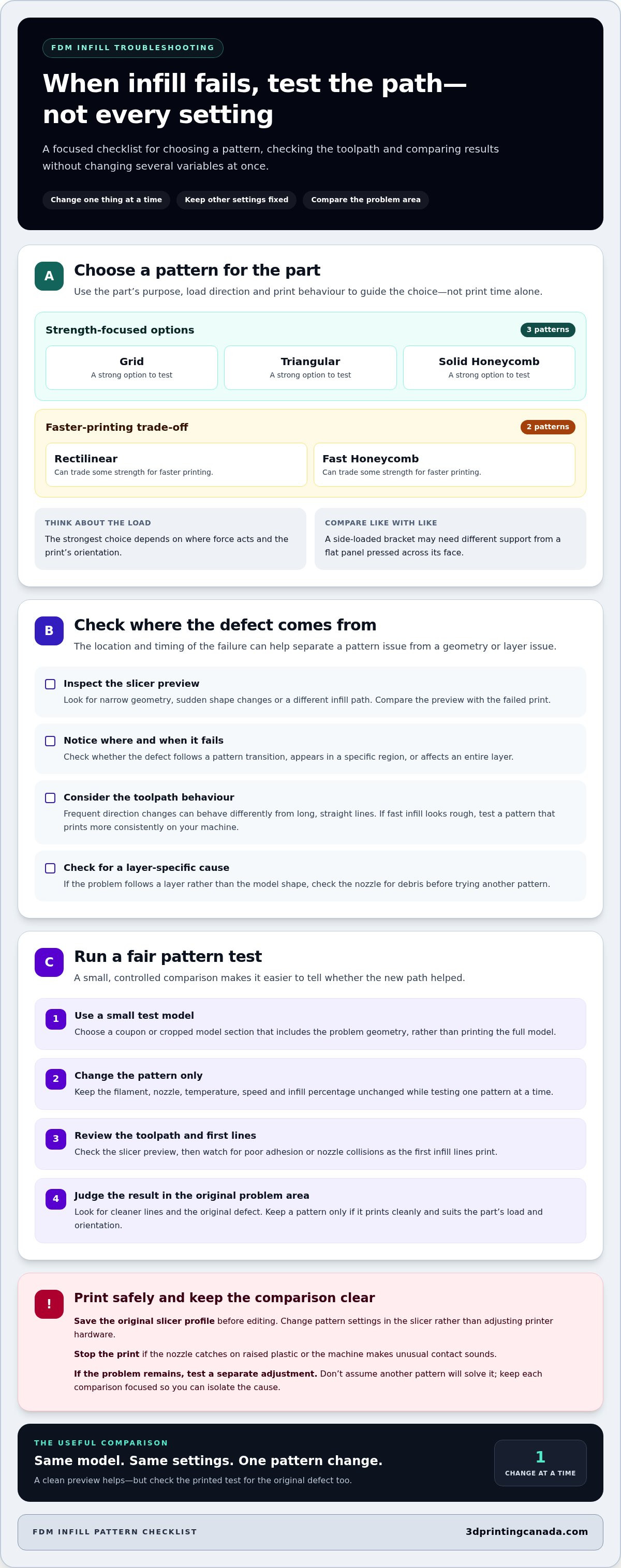
A pattern change may help when infill lines tangle, leave unsupported gaps, or fail to support upper layers. Grid, Triangular, and Solid Honeycomb are strong options. Rectilinear and Fast Honeycomb can trade some strength for faster printing, so choose according to the part’s purpose, not print time alone.
The strongest pattern depends on the load and print orientation. Grid, Triangular, and Solid Honeycomb are strong options, but the part’s shape and direction of force also affect performance. A side-loaded bracket, for example, may need different support from a flat panel pressed across its face. Consider where force acts, then compare patterns on the same model with identical settings.
Infill is printed differently from the outer portions of a model, so a pattern’s travel and line intersections can affect how it lays down. Frequent direction changes may behave differently from long, straight lines. If fast infill looks rough, test a pattern that prints more consistently on your machine. Change the pattern first and keep other settings fixed, so the result is easy to assess.
If a failure appears only on certain layers or in specific regions, inspect the slicer preview. Look for narrow geometry, sudden shape changes, or a different infill path. Compare the preview with the failed print to see whether a pattern transition coincides with the defect. If the problem follows a layer rather than the model shape, check the nozzle for debris before testing another pattern.
Test changes with a small coupon or cropped model section that includes the problem geometry. Keep the filament, nozzle, temperature, speed, and infill percentage unchanged while testing one pattern at a time. This makes comparisons meaningful and avoids wasting material on full-size prints. Check the toolpath in the preview, then watch the first infill lines for poor adhesion or nozzle collisions.
Save the original slicer profile before editing, and change pattern settings in the slicer rather than adjusting printer hardware. Stop the print if the nozzle catches on raised plastic or the machine makes unusual contact sounds. A small test can show whether Grid, Triangular, Solid Honeycomb, Rectilinear, or Fast Honeycomb suits the part. Once the infill prints cleanly, apply the setting to the full model.
Changing the infill pattern is one way to troubleshoot messy FDM infill. Test a specific question: does a different path produce cleaner lines in the same problem area? Judge the result by how that area prints, not by the pattern name. A clean preview is useful, but check the printed test for the original defect too.
If the problem remains, don’t assume another pattern will solve it. Check whether the defect follows the model geometry, a pattern transition, or an entire layer, then test a separate adjustment. Keeping each comparison focused helps distinguish a useful pattern change from the effects of other settings. Keep only a pattern that prints cleanly and suits the part’s load and orientation.
2. Infill visible through top, bottom, or side surfaces
Infill showing through a finished surface often points to thin walls or a mismatch between internal lines and outer shells. First identify where the pattern appears: on a top surface, underside, or side wall. Then inspect that area in the slicer preview. If the infill sits close to the exterior, check the model’s wall thickness before changing other settings.
For side show-through, compare wall thickness with the infill paths behind it. Thin walls can reveal the internal structure, especially where infill lines meet the perimeter. Check the preview around corners and narrow sections, where the space between wall and infill changes. Adjust wall thickness in the slicer, then print a small section to see whether the pattern remains visible.
Show-through on top surfaces can appear as ridges, dimples, or uneven patches. Check whether the top layers bridge over the infill cleanly or follow its shape. A pattern visible mainly above sparse support may mean the top surface is revealing the structure beneath it. Compare the affected area with a nearby section and note whether the marks follow or cross the infill paths.
Check bottom surfaces separately. In the slicer preview, inspect the first solid layers and the infill beneath them. If the underside shows a repeating pattern, check whether enough wall thickness separates it from the internal structure. Also inspect how the model sits on the build plate. A sloped underside or narrow base can make internal lines more visible in particular regions.
If infill shows through the exterior, try changing print order. Printing infill after the perimeters can help reduce the effect of infill lines pressing against the outer surface. Change only that setting, then compare the same model region. If marks remain, test wall thickness separately to identify which adjustment improves the finish.
Keep the filament and other slicer settings unchanged during each comparison. Use a small test piece containing the affected wall or top surface, and inspect it under the same lighting as the original print. Record whether the marks disappear, shift, or remain in the same place. If the slicer preview looks correct but extrusion remains uneven, explore printer troubleshooting support for the hardware side of the problem.
When the infill pattern is visible from the exterior, check wall thickness first rather than changing several slicer controls at once. Compare the problem area with the preview, keeping other settings fixed as you assess the surface. This ties the diagnosis to the feature showing through, instead of making multiple changes whose effects are hard to separate.
For show-through, try printing infill after the perimeters as a separate test. Compare the same model region and leave the filament and other slicer settings unchanged. If the pattern remains visible, check wall thickness in another test. Comparing each result with the original surface shows whether the change helped, shifted the marks, or made no difference.
3. Perimeters and infill overlap
Infill connects a print’s outer shells and supports upper surfaces. If the lines stop short of the perimeter, visible gaps or weak bonds can result. Inspect the slicer preview where infill meets the wall. A consistent gap along a rectangular panel suggests a different issue from an isolated gap around a curved feature.
To fix weak infill-to-wall bonding or gaps in FDM prints, check the infill-to-perimeter overlap setting first. Adjust it gradually and inspect the toolpath preview. Printing infill before the perimeter walls may also help the infill join the outer wall. Test one change at a time on a small section before applying it to the whole model.
Most slicers place pattern and overlap controls in the infill settings. Look for “infill/perimeter overlap” or a similar label, then check the preview to see where the paths meet. Choose a suitable pattern and keep overlap consistent when comparing patterns. Menu names and locations vary by slicer.
Too little overlap can leave a narrow channel between infill and perimeter. Too much can push plastic into the wall, creating a raised line or rough surface. On a box-shaped model, inspect corners and straight walls separately. If roughness appears only beside infill, reduce the overlap from the current profile and print a small test.
To troubleshoot infill collisions, nozzle dragging, or rough top surfaces, preview the toolpath and check whether raised strands sit in the nozzle’s path. If infill lines look messy, try reducing their speed. A different pattern or print order may also help. If upper layers remain rough, inspect the top-surface paths separately from the perimeter junction.
Printing infill before the perimeter can improve the connection because the later wall encloses the infill line ends. However, this order may affect the outer surface if infill presses against it. Compare both sequences on the same model area. Keep the filament and other slicer settings unchanged so you can tell whether print order improved the result.
Change one setting per test. Start with overlap, then test the print sequence, and finally compare another infill pattern. In the preview, confirm that each infill line reaches the perimeter without crossing into an unintended wall path. A small test piece with a corner and flat wall can show whether bonding improved without causing collisions or rough edges.
Record the slicer profile and problem area for each test. Note whether a gap appears along a long wall, at a corner, or only above a particular infill path. If revised overlap closes the gap but leaves a raised ridge, compare the original and updated previews before changing another setting. This keeps troubleshooting focused on the infill-to-wall connection.
4. Balancing extrusion width and infill percentage
Infill percentage controls the spacing of internal lines, while extrusion width affects their thickness. If infill looks fragile or separates, inspect both settings alongside the slicer preview. Wider lines place more plastic in each path but also change the space between paths. Don’t change width and density together, or you won’t know which adjustment affected the result.
To prevent infill separation, check overlap and extrusion width. Overlap extends infill paths into perimeter walls, helping them join rather than stop short. Wider infill lines create thicker paths, but check their spacing and the preview to confirm they connect as intended.
Increasing infill extrusion width to 200% means each infill line uses twice as much plastic. If you maintain the same infill percentage, the slicer spaces those lines farther apart. That trade-off can leave individual lines thicker without increasing the proportion of the model filled by infill. Inspect narrow sections closely, where altered spacing may change how lines fit.
Pattern, density, and layer height affect strength and print time in different ways. Pattern changes the paths and intersections that support the part, while density changes how much internal material those paths occupy. Layer height changes the vertical build increments. Compare the sliced layer preview to assess its effect on the model and print plan.
For a controlled test, save the current profile and adjust extrusion width alone. Slice the same model, then compare the infill paths, perimeter connections, and estimated material use. Restore the original width before testing a different infill percentage. A small model section with a broad area and a narrow feature makes changes in spacing easier to spot.
Under-extrusion, a clogged nozzle, or wet filament can leave gaps that resemble poor infill settings. Look for irregular or thin lines across multiple regions, not just where infill meets a wall. Check the nozzle and clean the hot end; calibrate the extruder if extrusion appears consistently low. If you suspect wet filament, compare extrusion behaviour with properly stored filament before changing slicer values.
If lines look messy, check infill density, then lower infill speed if fast deposition appears inconsistent. Keep pattern, width, and layer height fixed during the test. If the defect persists across models and settings, inspect the extrusion path rather than adding infill. Changing density alone won’t fix a clogged nozzle or inconsistent material feed.
5. How do nozzle temperature, print speed, and flow rate affect infill adhesion?
Connected infill lines require steady extrusion. Printing too quickly can cause under-extrusion, leaving weak, stringy paths that don’t bond well. If the infill looks messy, lower its speed and inspect the result before changing other settings. Slower movement gives the hot end more time to deposit material along each path.
Nozzle temperature affects how readily filament melts and flows. If infill lines leave gaps beside the outer wall, a small temperature increase may improve flow. Test in controlled steps within the filament’s suitable range, then check whether the lines join cleanly. A warmer setting alone won’t clear a clogged nozzle or fix inconsistent feed.
Flow rate controls how much filament the printer attempts to extrude. Too little can leave thin, separated infill; too much can create ridges and roughen nearby paths. Check for under-extrusion across the print, not just at infill junctions. If several regions show thin lines, calibrate the extruder before relying on a slicer flow adjustment.
Use one reported generic PLA setup as a diagnostic example, not a universal profile: the nozzle was set to 200 °C and the print speed to 60 mm/s throughout. The same report listed a 60 °C bed, 100% cooling fan, 0.1 mm layer height, and 0.4 mm nozzle. Those settings describe one print, not guaranteed values for every printer or filament.
To isolate speed, keep temperature and flow settings fixed, then reduce infill speed and compare a test print. If gaps persist, restore the original speed and test a modest nozzle-temperature adjustment. Record each setting and visible result. This sequence helps distinguish fast deposition from poor melt flow without changing several variables at once.
If thin or interrupted lines continue across multiple areas, inspect the nozzle and filament path. A partial clog can restrict extrusion, while under-extrusion may point to a feed or calibration issue. Clean the hot end and check the nozzle; calibrating the extruder is another troubleshooting step. If the printer still feeds inconsistently, the fault may need hardware diagnosis rather than another slicer adjustment.
Start with the simplest test: reduce infill speed, observe line continuity, then assess temperature and flow separately. If persistent extrusion faults make results difficult to interpret, get help diagnosing printer extrusion issues.
3D Printing Canada: 3D Printer Repair Services
3D Printing Canada offers 3D Printer Repair Services for printer problems that persist after slicer settings and filament have been checked. If infill remains inconsistent across different models, or extrusion issues continue despite adjusting speed and temperature, hardware troubleshooting may be the next step.
Share clear examples of the failure, such as infill gaps, weak bonding, or lines that stop and start. When the problem occurs can help narrow the cause to the printer’s extrusion system or another hardware issue. Repair support is useful when careful setting changes haven’t resolved the fault.
Keep the slicer profile and a sample print available to explain what you’ve tested. Contact 3D Printing Canada to discuss persistent printer problems and repair support.
Make your next print a focused test
A practical approach to troubleshooting infill pattern failures in FDM 3D prints starts with one clear question. Change a single setting, compare the result with your saved profile, and note what improved or worsened. Keep each test focused so your next adjustment has a clear purpose.
If inconsistent extrusion or recurring hardware faults make those tests hard to interpret, 3D Printing Canada’s 3D Printer Repair Services can help address the printer side of the problem. Describe the symptoms and adjustments you’ve already tried to keep the discussion focused on the issue.
Contact 3D Printing Canada to discuss persistent printer problems. Keep your testing methodical, and use each result to move closer to clean, dependable prints.
Frequently Asked Questions
What causes FDM infill patterns to fail or print inconsistently?
Inconsistent infill can result from slicer settings, restricted filament flow, or a feed problem during printing. If infill fails partway through a model while the outer walls remain smooth, check whether the spool unwinds freely and the extruder grips the filament consistently. Compare the failed layer with the sliced preview to see whether the defect follows the toolpath or appears unexpectedly during extrusion.